Sign In














 Email Marketing
 ABM
ABM  List Building
  Lead Generation
  Growth Hacker
  Digital Marketing
  Data Enrichment
  Software as a Service
  Data as a Service
  Waterfall Enrichment
  Startup
  Revenue Performance
  Job Change Tracking
  Customer Data Platform
  CRM
CRM 


 Knowledge Base
  Video Tutorials
  Help Center
  Tarpitting Scoring
  ROI Calculator
  About us
  Contact us
  Testimonials
-
Featured
 Blog
FAQ
Case Studies
Help Center Knowledge Base
Video Tutorials
Help Center
Tools SEG Validation
Tarpitting Scoring
ROI Calculator
Company About us
Contact us
Testimonials
Blog
FAQ
Case Studies
Help Center Knowledge Base
Video Tutorials
Help Center
Tools SEG Validation
Tarpitting Scoring
ROI Calculator
Company About us
Contact us
Testimonials
Google sheets email validation
Validate email address list with Gamalogic Google sheets Add-on
By ensuring clean and reliable data, businesses can reduce bounce rates, improve deliverability, and enhance campaign performance. Validate email address lists efficiently, streamline workflows, and maintain high quality data without leaving Google Sheets using Gamalogic’s powerful and user friendly solution.
Every email you validate is checked at three levels: syntax (is it formatted correctly), domain and MX record (can the domain receive mail at all), and SMTP-level mailbox verification (does the specific inbox exist). Gamalogic also flags disposable, role-based, and catch-all addresses — the same risk signals that cause high bounce rates and hurt sender reputation.
Email Address list Validation on Google Sheets with Gamalogic Add-on
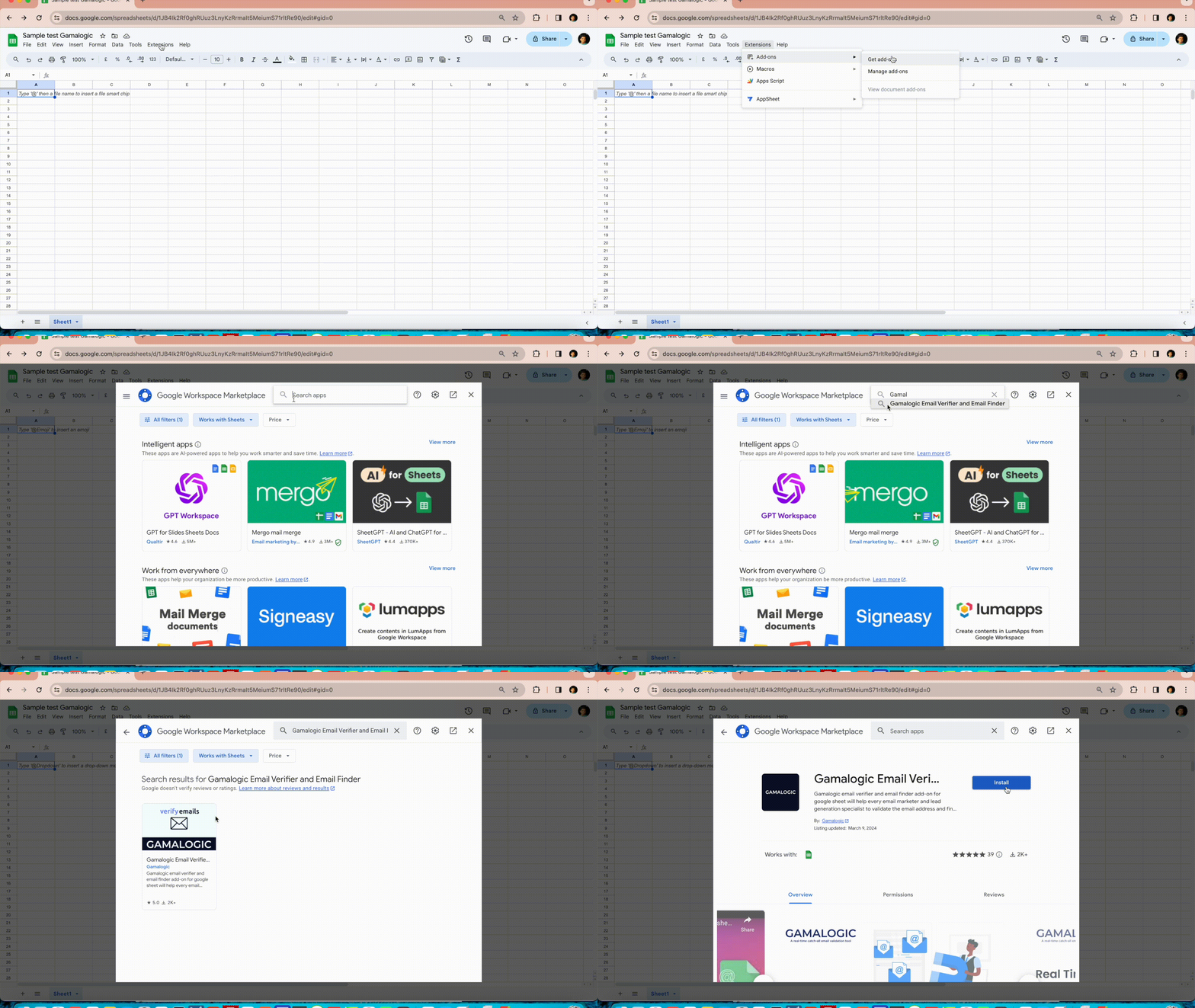
Install the add-on
Install the Gamalogic Email Verifier and Email Finder Google Sheets add-on from the Google Workspace Marketplace. Click here to install. This takes about one minute.
Open the add-on
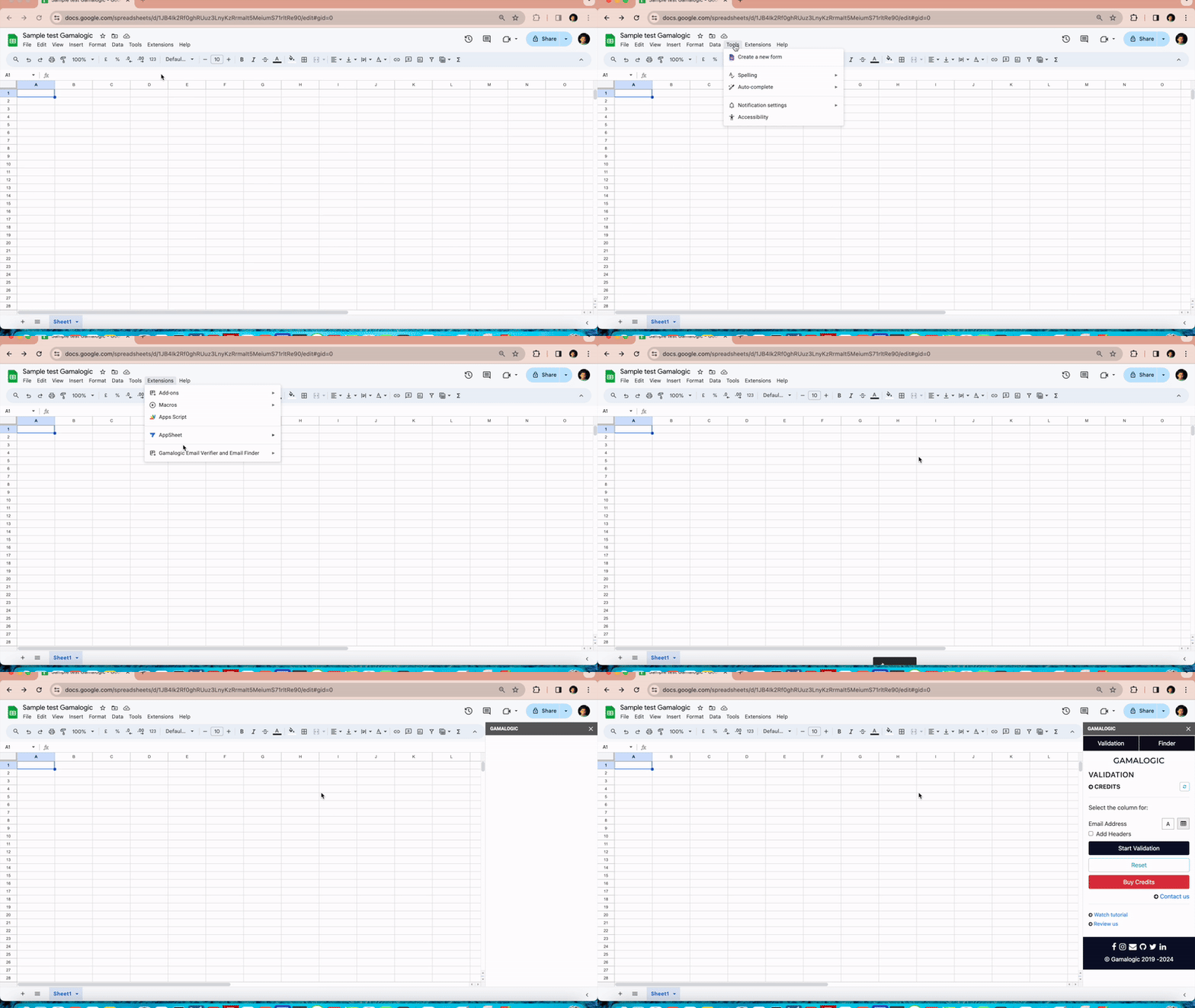
After installation, go to the Add-ons menu in Google Sheets and select Gamalogic Email Verifier and Email Finder.
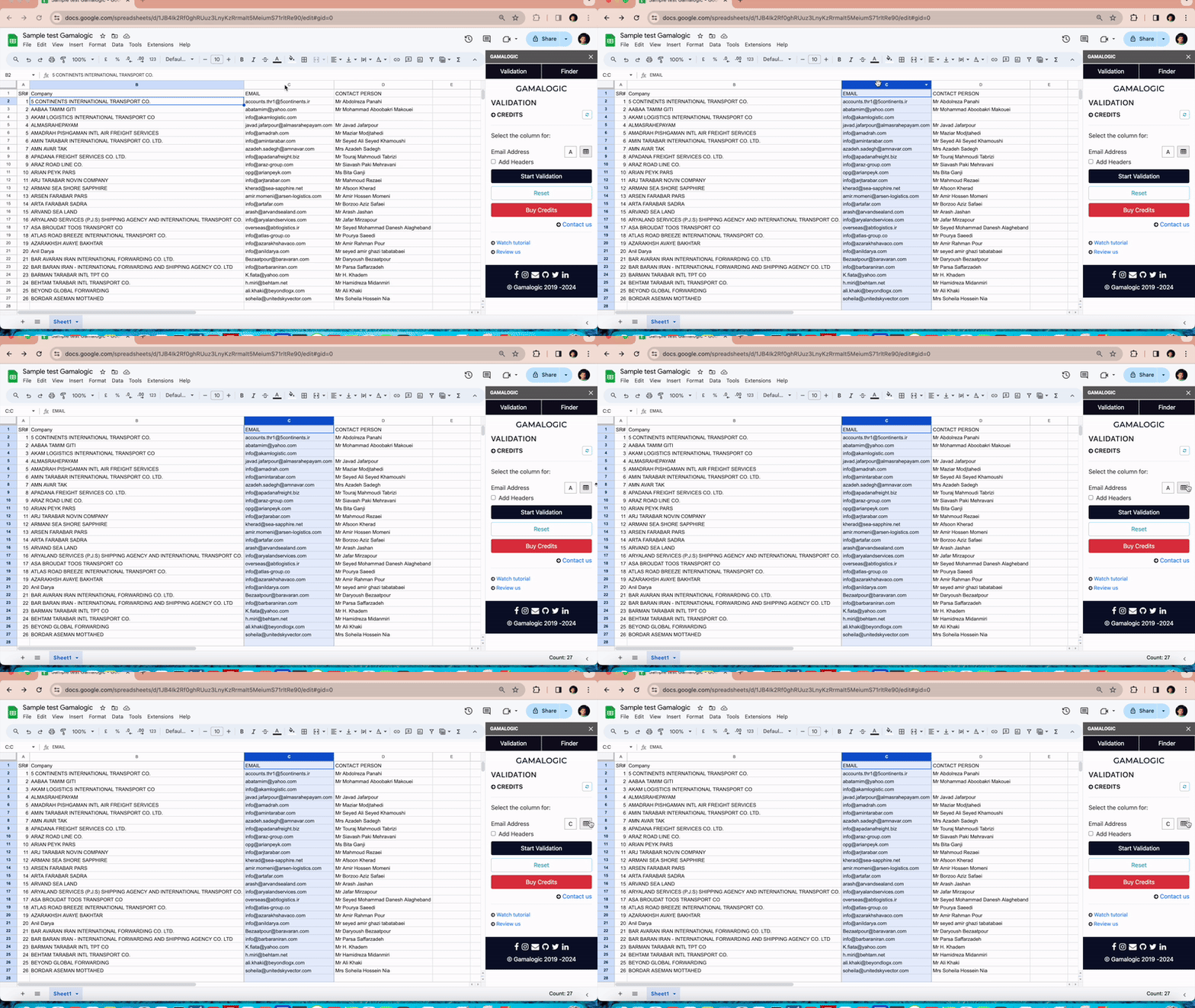
Select your email column
Once the add-on sidebar appears, add your list of email addresses to be verified in any column or list on the sheet. Identify the column containing email addresses by selecting it and clicking on the column picker next to the email address text box in the add-on.
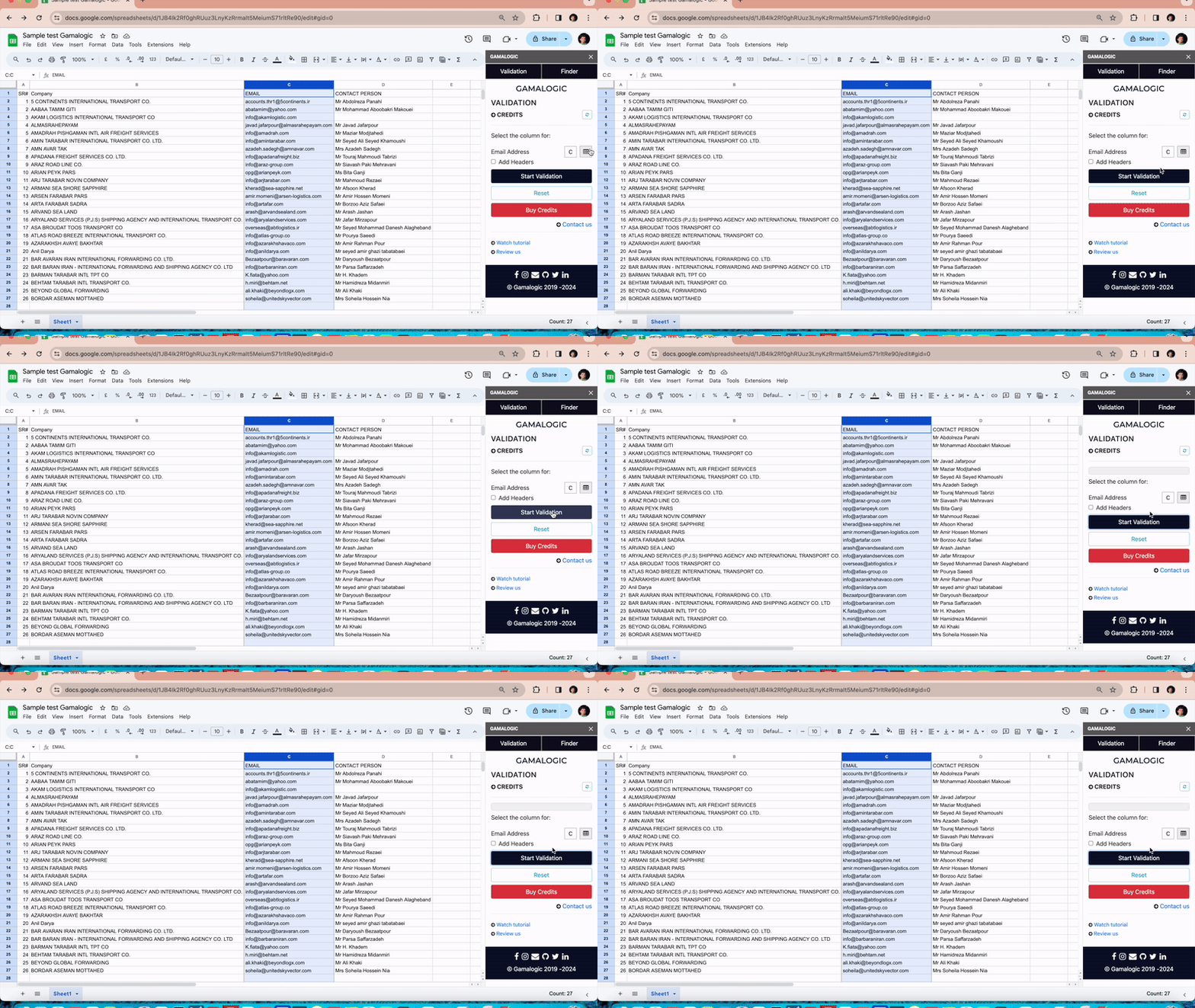
Start validation
Click the Start Validate button in the add-on to begin email verification.
Review the results
Wait for the results to be generated till the progress bar reaches 100%. A new column will be added next to the column containing email addresses, displaying the validation results. Additionally, your credit balance will be updated, and the number of lists verified will be shown in the sidebar. If your credits are low, you can purchase additional credits by clicking “Buy Credits”.
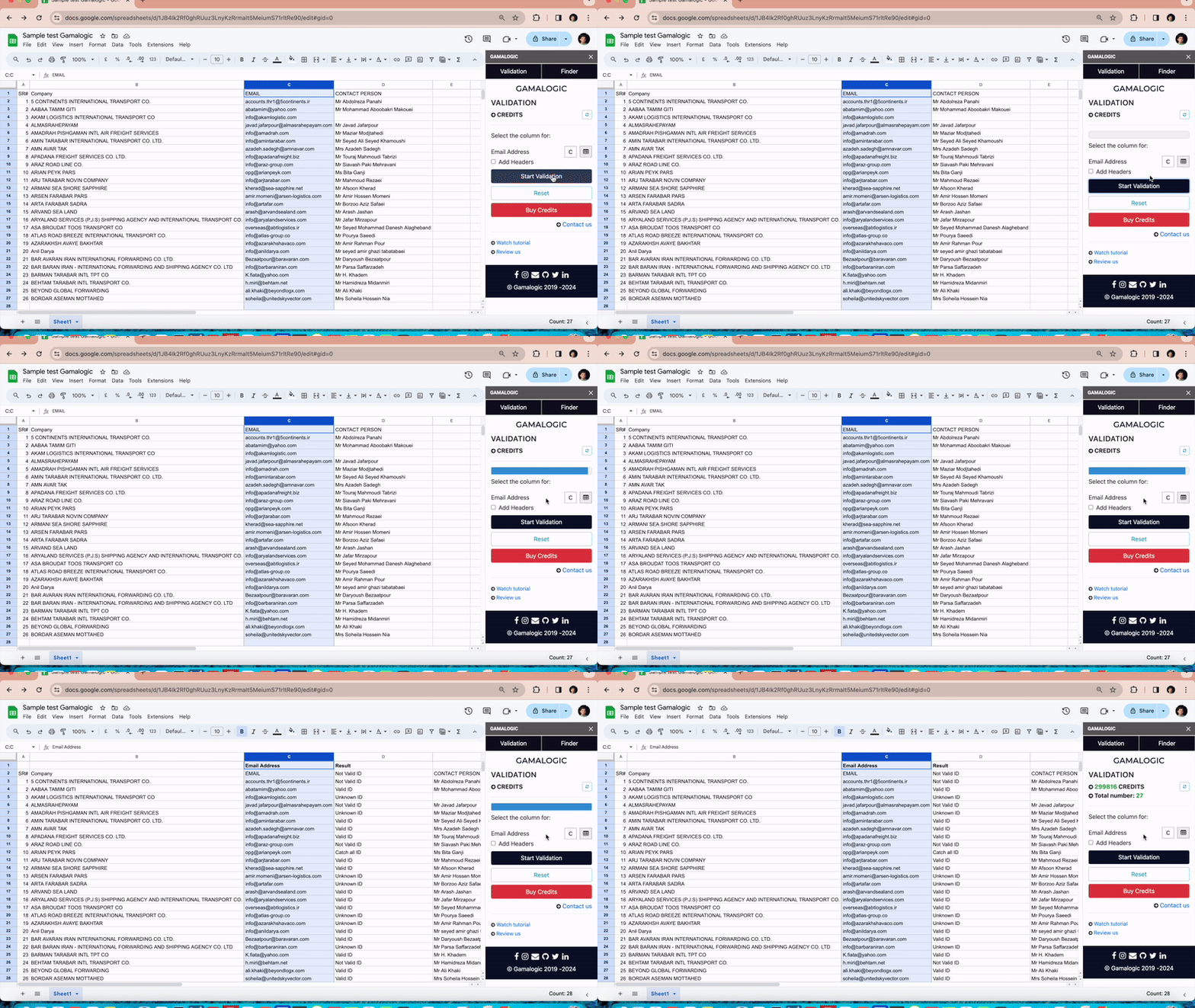
What Each Validation Result Means
After validation, every email in your sheet is marked with one of four results — here's how to act on each one.
Safe to send
The address passed syntax, domain, and mailbox-level checks. It's confirmed deliverable and ready for your list.
Will bounce
The domain or mailbox doesn't exist. Remove these before sending to protect your sender reputation.
Proceed with caution
The domain accepts all mail regardless of whether the specific mailbox exists. Learn more about catch-all domains and how to handle them.
Low-value contact
A temporary or throwaway address. See how we detect disposable and temporary email addresses.
Why Validate Directly in Google Sheets
No exporting or switching tools
Results write back into the same sheet, right next to your original list — no CSV exports or copy-pasting between apps.
One sign-up, one install
No need to connect Zapier, Make, or a separate API account. Install the add-on from the Google Workspace Marketplace and validate straight from the sidebar.
Built for list builders and sales teams
Whether you're doing list building or lead generation, validation happens where you already manage your contacts.
Protects deliverability and sender reputation
Filtering out invalid, disposable, and risky addresses before you send keeps bounce rates low and inbox placement high. See the full email validation platform for more.
7-day trial, 500 free credits, no credit card required.
Got some
Questions?